![Wide C2 Accounting Logo.png]](https://help.c2-acctg.com/hs-fs/hubfs/Wide%20C2%20Accounting%20Logo.png?height=50&name=Wide%20C2%20Accounting%20Logo.png)
If you use ADP for payroll, we'll ask you to connect us through ADP's AccountantConnect feature so we can access your payroll reports directly. Sharing your username and password isn't the answer here. It's not secure, and it doesn't give us (or ADP) a clean way to track access. Accountant Access solves both problems and takes only a few minutes to set up.
Here's how to grant us access:
Step 1: Log in to ADP.
Step 2: Hover over "Company" on the top menu bar.
Step 3: At the very bottom of the dropdown, click "Authorization."
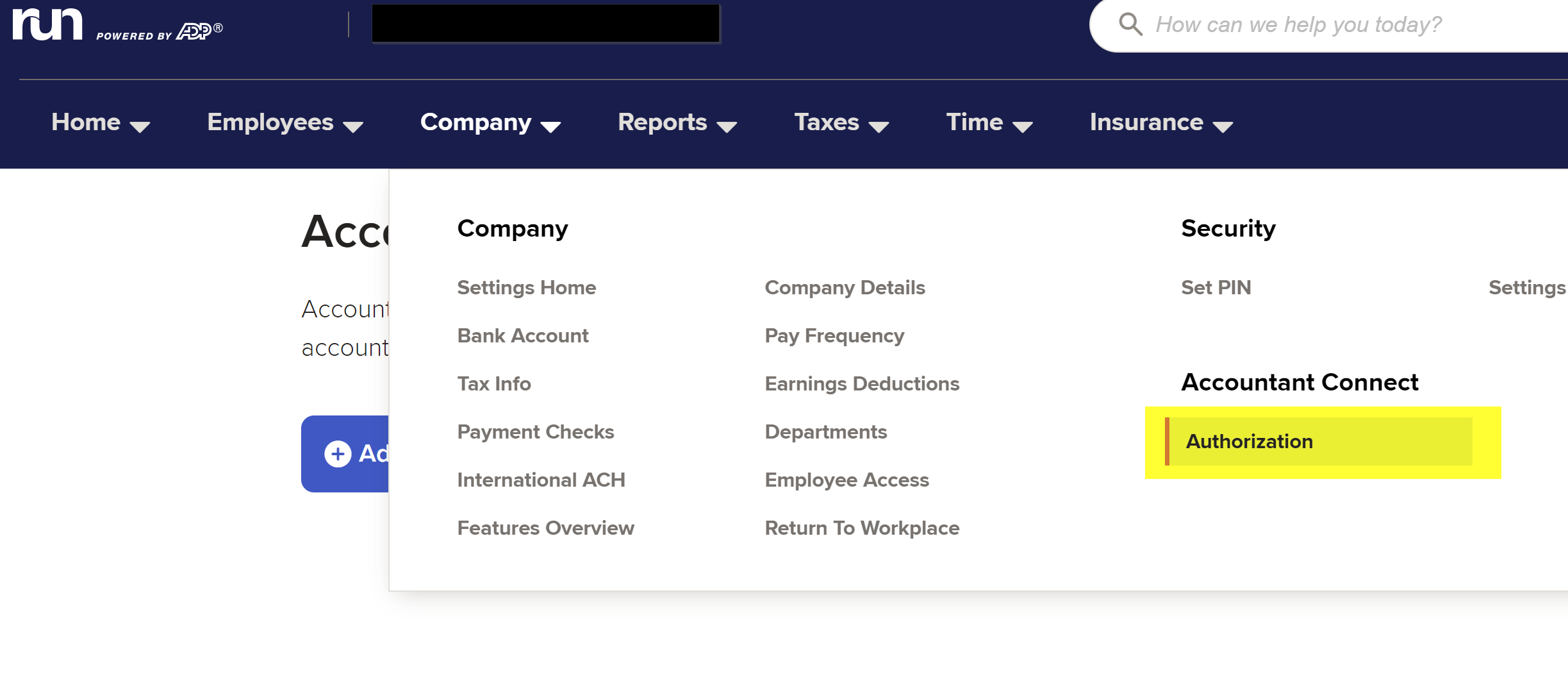
Step 4: Click the green "Add" button.
Step 5: Type our "Accounting Firm 8-digit ID Number (27334129)" into the search box, then click the green search button.
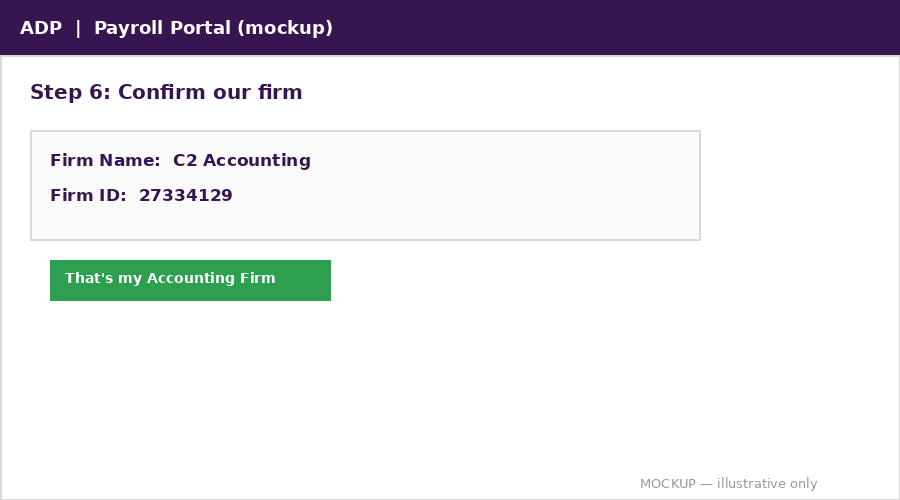
Step 6: Confirm the firm that comes up is C2 Accounting (Firm ID #27334129), then click the green "That's my Accounting Firm" button.
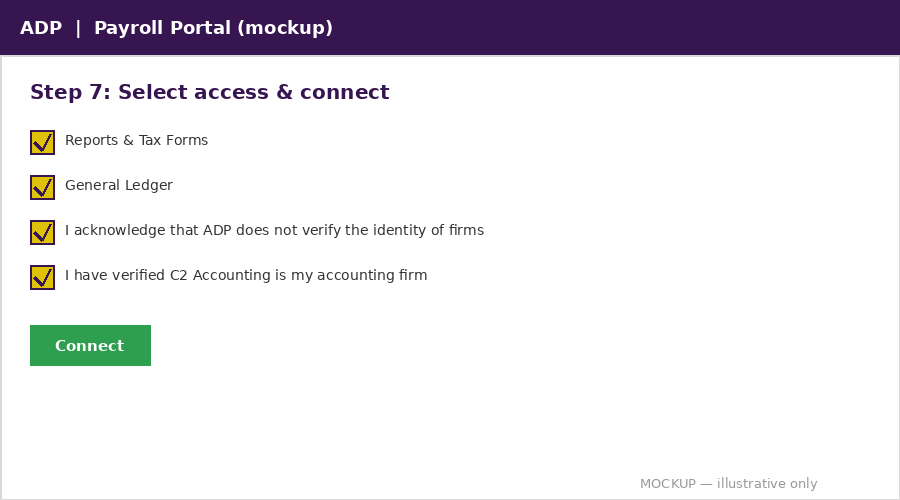
Step 7: Check the following boxes, then click the green "Connect" button:
- Reports & Tax Forms
- General Ledger
- I acknowledge that ADP does not verify the identity of firms
- I have verified C2 Accounting is my accounting firm
Step 8: That's it, you're all set. We'll get an email from ADP confirming we now have access to your payroll reports, and we'll take it from there.
If anything on this page doesn't match what you're seeing in your ADP account, reach out, and we'll walk through it together.